
A good language selector is the first thing a visitor to your multilingual website sees. With WP-Translate, you place it wherever you want, choose how it is displayed, and adjust its style until it matches your design. All from the panel, without touching code. Here it is step by step.
To the point: the selector is placed by widget, shortcode
1. An elegant selector on your website
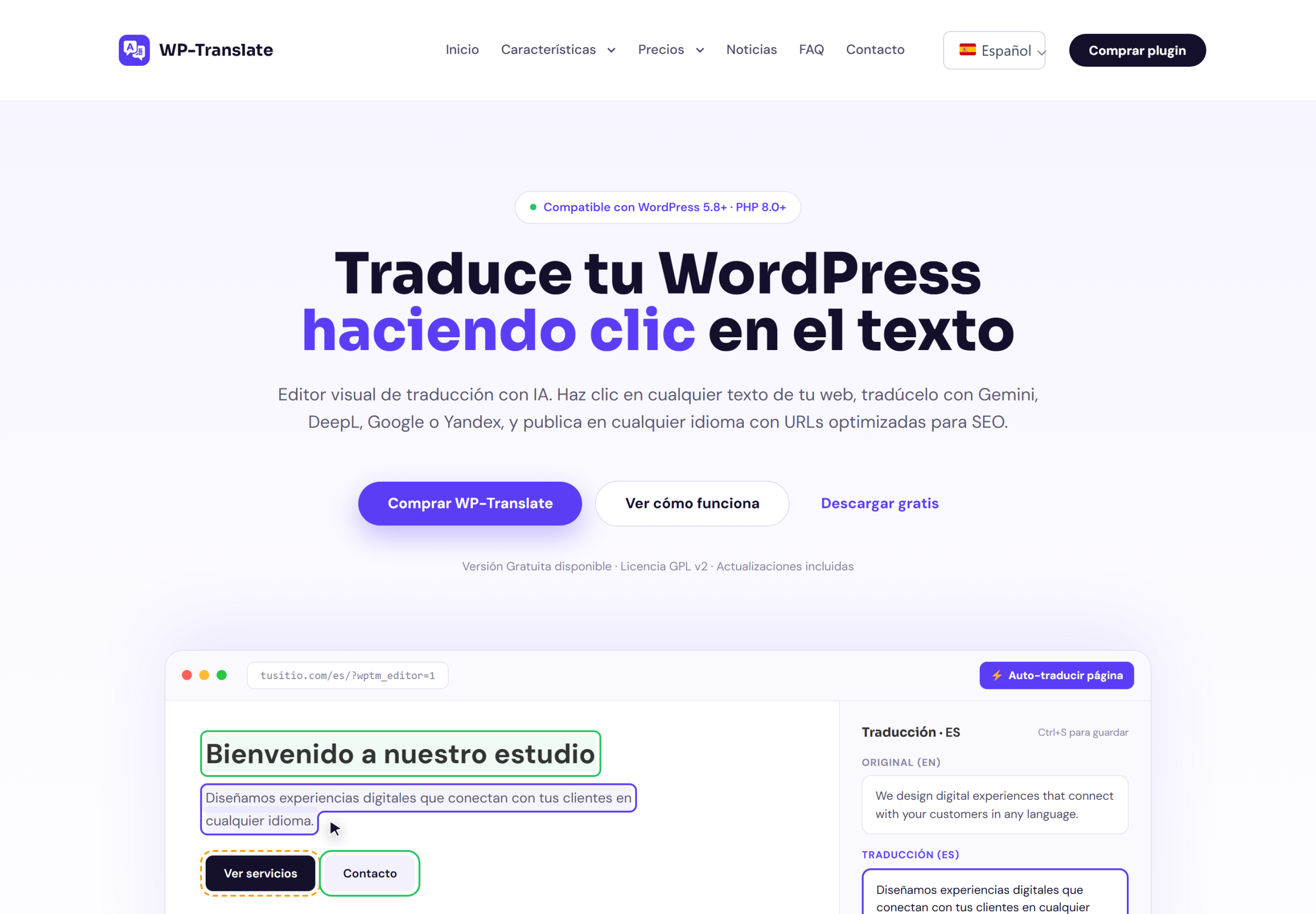
As soon as you activate your languages, WP-Translate displays a clean selector with the flag and the name of the current language. It unfolds to change language in one click and respects the version of the page the visitor is on.
2. Choose how it looks
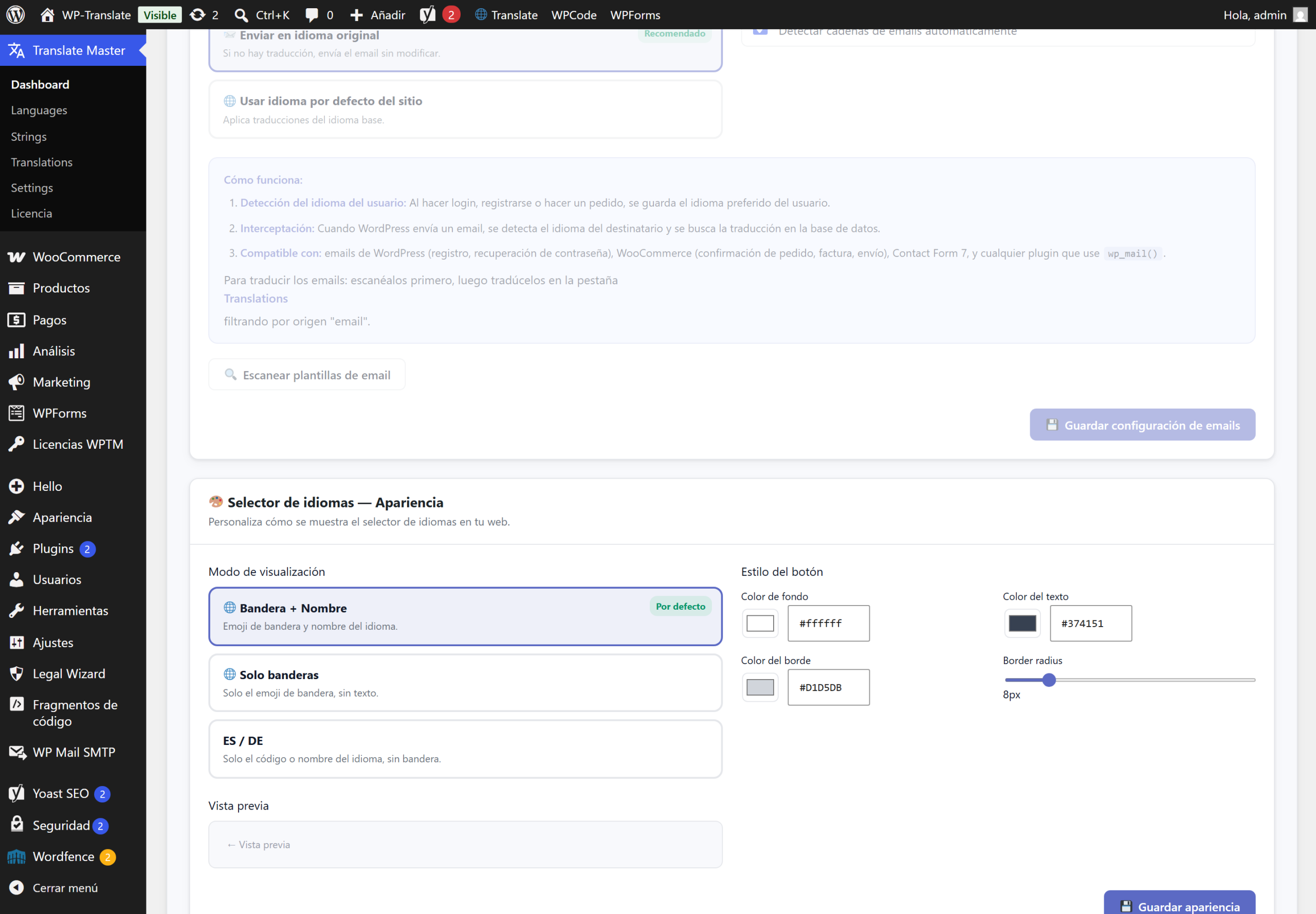
From the settings you decide the display mode: flag + name for maximum clarity, flags only when space is tight, or language code (ES, DE, EN…) for a minimalist look. One change and it applies across the entire website.
3. Customize its style
The selector adapts to your brand: you change the color of the button, that of the text, the border and the corner radius. This way it fits equally well in a dark header as in a light footer, without manual CSS.
4. Place it wherever you want
Three ways to insert it, depending on how your website is set up:
- Widget: drag it to any widget area (header, sidebar, footer).
- Shortcode: paste
- Español
- English
- Afrikaans
- Shqip
- العربية
- Հայերեն
- Azərbaycan
- Euskara
- Беларуская
- বাংলা
- Bosanski
- Български
- Català
- 中文(简体)
- 中文(繁體)
- Hrvatski
- Čeština
- Dansk
- Nederlands
- Eesti
- Suomi
- Français
- Galego
- ქართული
- Deutsch
- Ελληνικά
- ગુજરાતી
- Kreyòl Ayisyen
- עברית
- हिन्दी
- Magyar
- Íslenska
- Bahasa Indonesia
- Gaeilge
- Italiano
- 日本語
- ಕನ್ನಡ
- Қазақ
- ខ្មែរ
- 한국어
- ລາວ
- Latviešu
- Lietuvių
- Македонски
- Bahasa Melayu
- മലയാളം
- Malti
- Монгол
- नेपाली
- Norsk
- فارسی
- Polski
- Português
- ਪੰਜਾਬੀ
- Română
- Русский
- Српски
- සිංහල
- Slovenčina
- Slovenščina
- Soomaali
- Kiswahili
- Svenska
- Filipino
- Тоҷикӣ
- தமிழ்
- తెలుగు
- ไทย
- Türkçe
- Українська
- اردو
- Oʻzbekcha
- Tiếng Việt
- Cymraeg
- ייִדיש
- Yorùbá
- IsiZulu
- Elementor: use WP-Translate's native widget and place it where you design.
Quick questions
Can I have multiple selectors? Yes. You can place it in the header and also in the footer, for example.
Do I need to know CSS to customize it? No. Colors, border, and radius are adjusted with visual controls.
Does it work with any theme? Yes, and if you use Elementor, you also have the native widget to place it precisely.