
Automatic translation saves you hours, but a professional website is not published blindly. WP-Translate gives you a panel where you see all the strings of your site, their status, and you can correct what is necessary. This tutorial shows you inside.
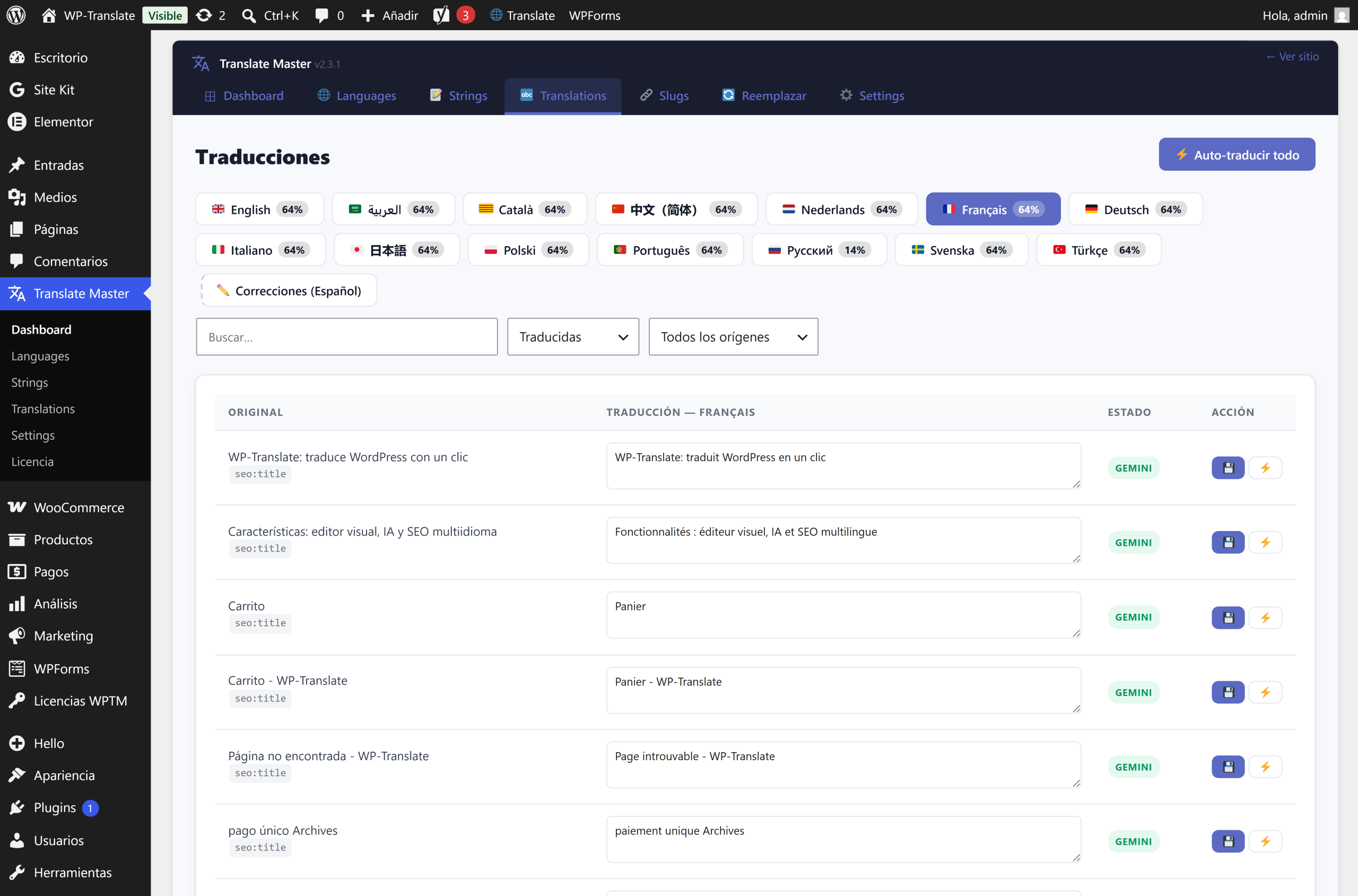
To the point: in Translate Master → Translations you have the complete list of texts on your website. You filter by language and status —translated, pending, reviewed—, search for a phrase and edit it right there. You have the final say on every line.
1. The translations panel
Every text detected on your website —from pages, menus, widgets, Elementor, ACF…— appears as a row with its original and its translation. It's your command center: from here you control absolutely all multilingual content.
2. Filter to not get lost
On a real website there are hundreds or thousands of strings. That's why you can filter by language and by status and search by text: this way you focus on what's missing, what you haven't reviewed yet, or that specific phrase you want to change. No going in blind.
3. Translate in batches and follow the progress
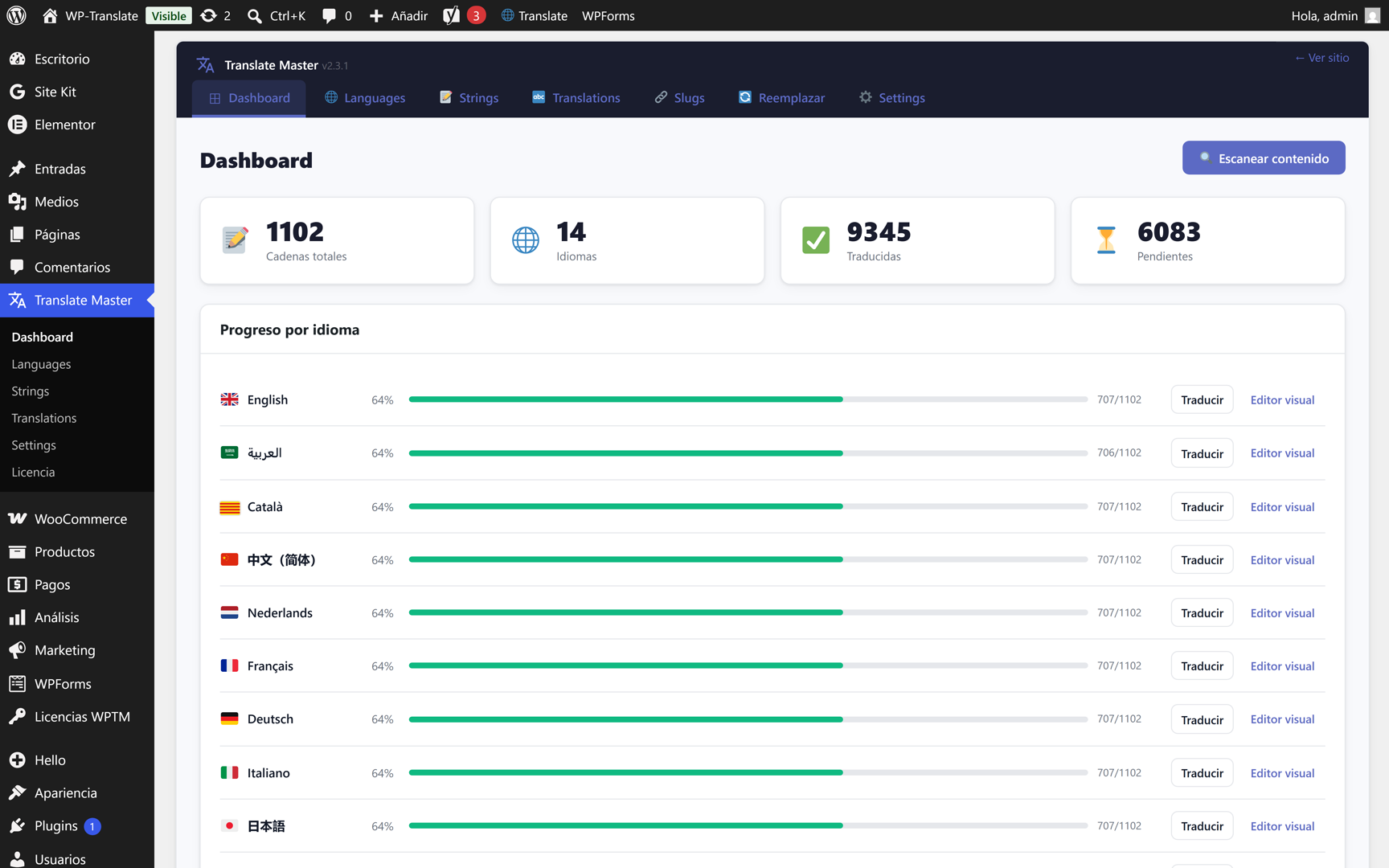
When you launch the automatic translation of all pending items, WP-Translate works in batches and shows you a real-time progress bar. You can leave it running and come back when it's finished; what's already done is not repeated.
4. Correct and mark as reviewed
Not convinced by a translation? Edit it in its row and it's saved instantly, overriding what the AI said. This way you can leave your website "reviewed" at your own pace, with the peace of mind that every published text has passed through you.
Quick questions
Are my corrections lost if I translate again? No. A manually edited string is fixed and automatic re-translation does not overwrite it.
Can I translate only a part? Yes. You filter what you want and translate only that; you are not obliged to process the entire website at once.
Does it detect text from Elementor and menus? Yes. WP-Translate reads content from Elementor, ACF, menus, and widgets, not just from posts.