
The first step for any multilingual website is to decide which languages you translate it into. With WP-Translate, this is done from a single screen: you choose the languages from a list, and each one instantly appears on your website with its own address. In this tutorial, you see it all.
To the point: in Translate Master → Languages you click "Add language", choose one from the list and that's it. Each language automatically receives its URL (/fr/, /ja/…), which Google needs to position each version separately.
1. Open the languages screen
In your WordPress dashboard go to Translate Master → Languages. There you have your main language —that of your original content— and a button to add all the others.
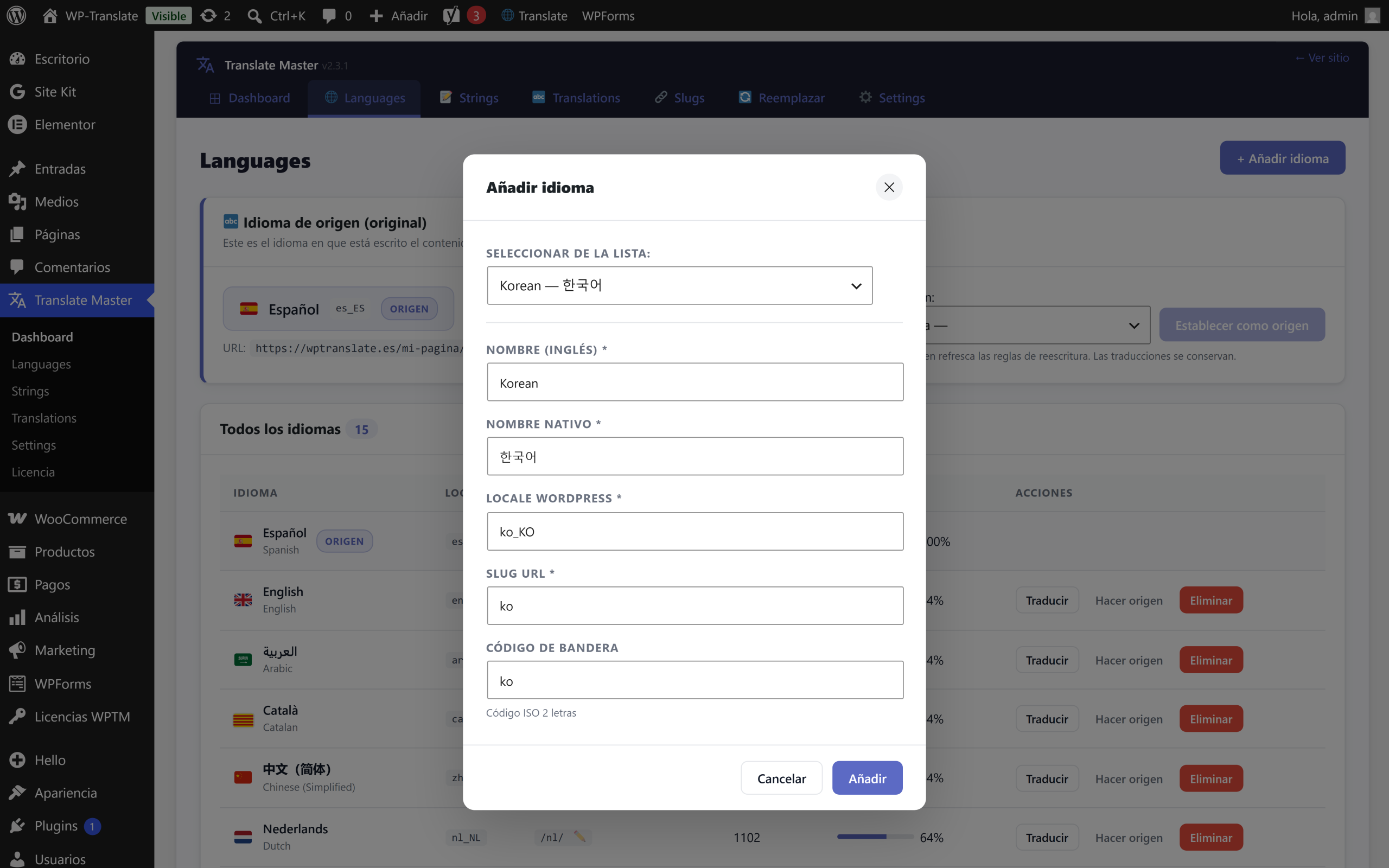
2. Choose from the list
WP-Translate brings more than a dozen languages ready to activate, with their native name and flag. You mark the ones you want and they are added at once. There is no practical limit: you can have your website in three languages or in twelve.
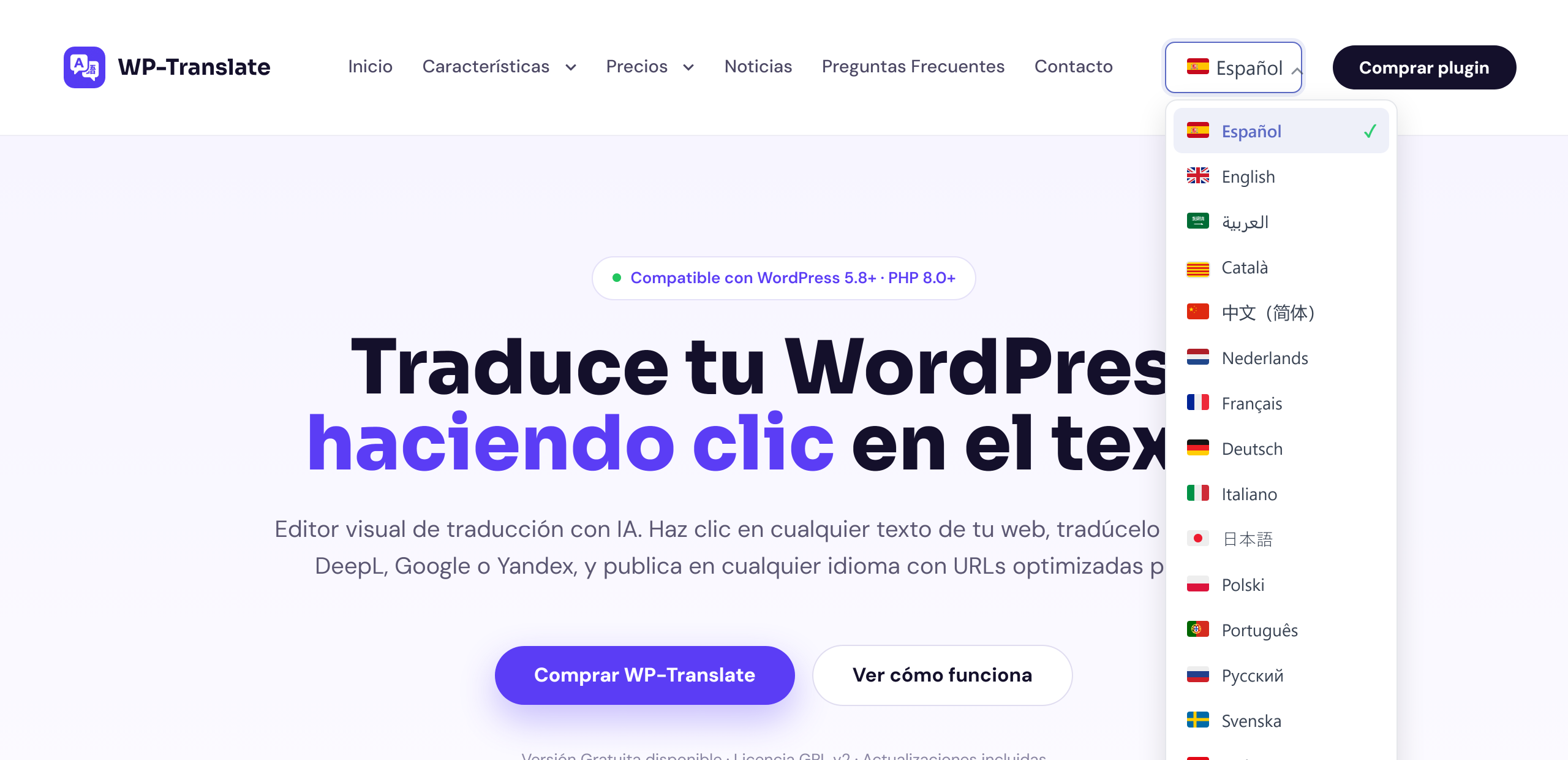
3. Languages with special writing: Japanese and Arabic
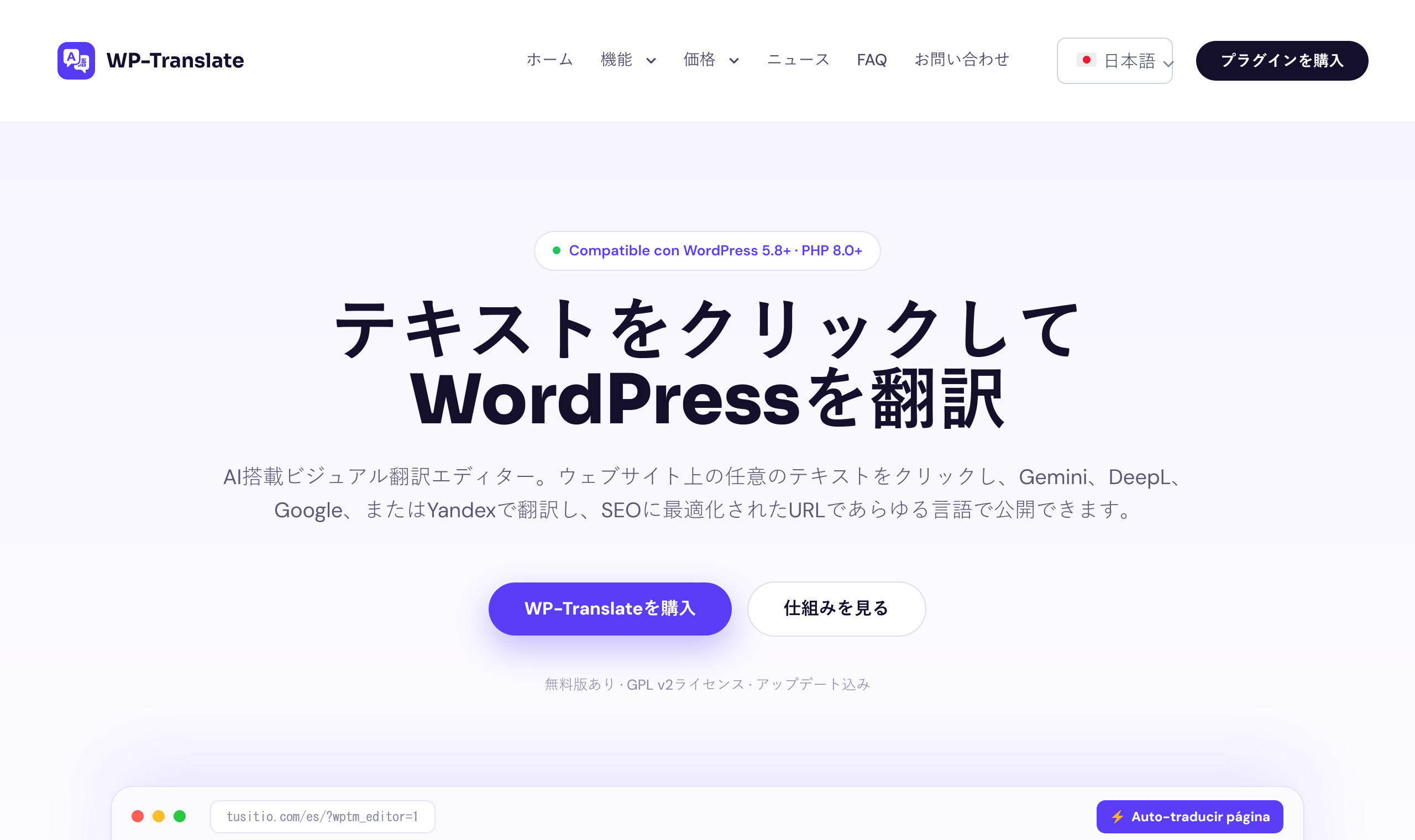
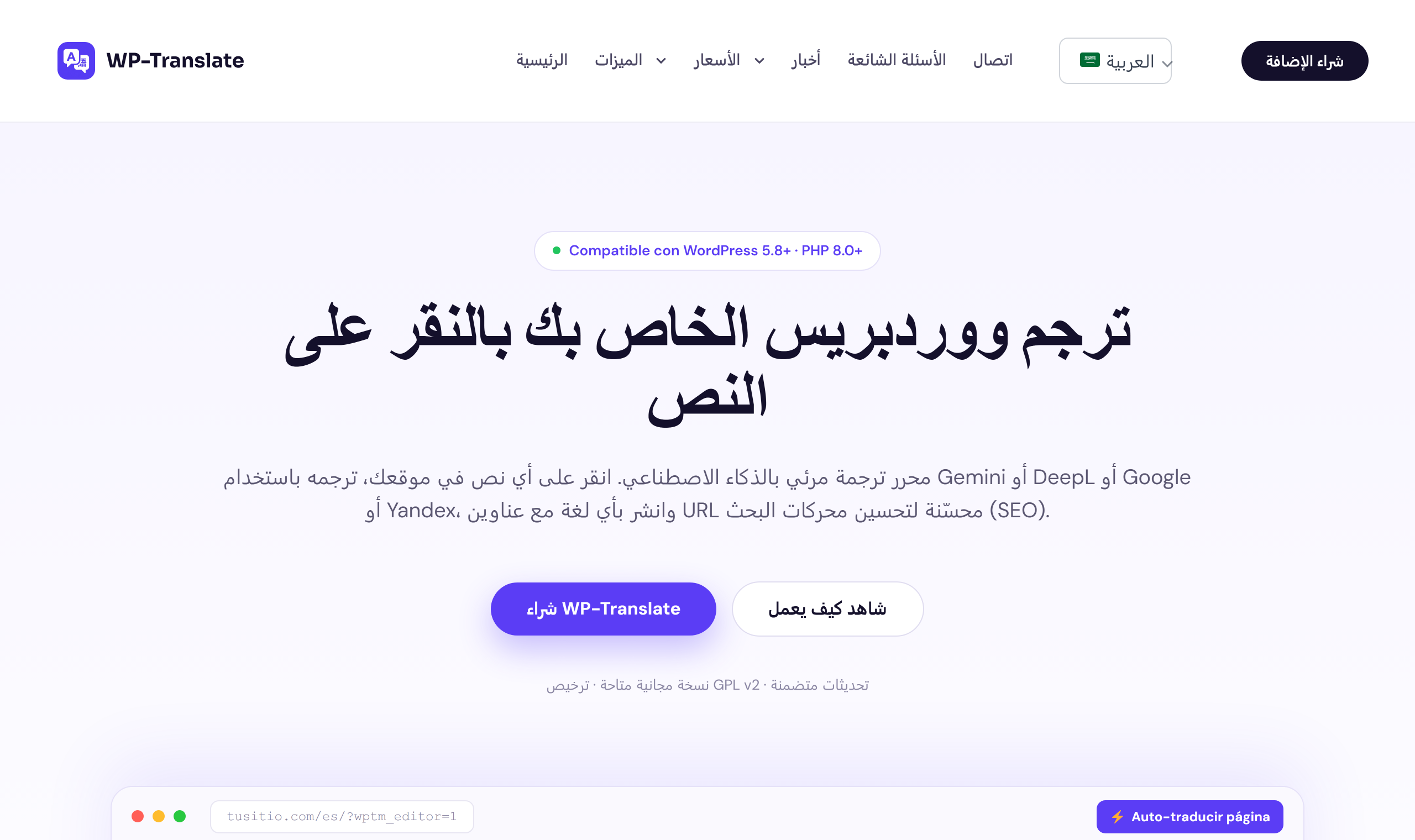
Not all languages are written the same way. WP-Translate handles well those that use other alphabets —like Japanese— and also those of right to left (RTL), like Arabic: the layout flips automatically so that the website reads naturally, without you having to touch the design.
4. One URL per language, designed for SEO
Each language you activate receives its own address with a prefix (/fr/, /de/, /ja/). This is not a minor detail: it's exactly what search engines like Google expect to index and position each version independently. WP-Translate also generates the tags hreflang and the multilingual sitemap for you.
Quick questions
How many languages can I have? As many as you want. The plugin does not limit the number of languages; what changes according to your plan is how many sites you use the license on.
Is the content translated when adding the language? Adding the language creates the version and its URL. Text translation is launched afterwards, with AI or manually —we cover this in the following tutorials in the series.
Can I remove a language later? Yes, from the same screen. When deactivated, it stops showing in the selector and in the URLs.